

SSL certificate in ispmanager
SSL is a protocol that encrypts data between a browser and a website. It is used to securely transmit personal information (logins, passwords, payment information) to a specific web resource.
Encryption works using a pair of two keys: a public key and a private key. The public key is accessible to everyone, while the private key is only available to the website owner. An SSL certificate verifies that these keys actually belong to the website. A certification authority (CA) verifies the authenticity of the keys and issues the certificate.
Installation Requirements
Section titled “Installation Requirements”All certificate types require the domain to point to a server running the ispmanager control panel.
Adding an SSL Certificate
Section titled “Adding an SSL Certificate”There are two ways to install SSL certificates in the ispmanager panel: through the Sites and SSL certificates sections:
1. Sites
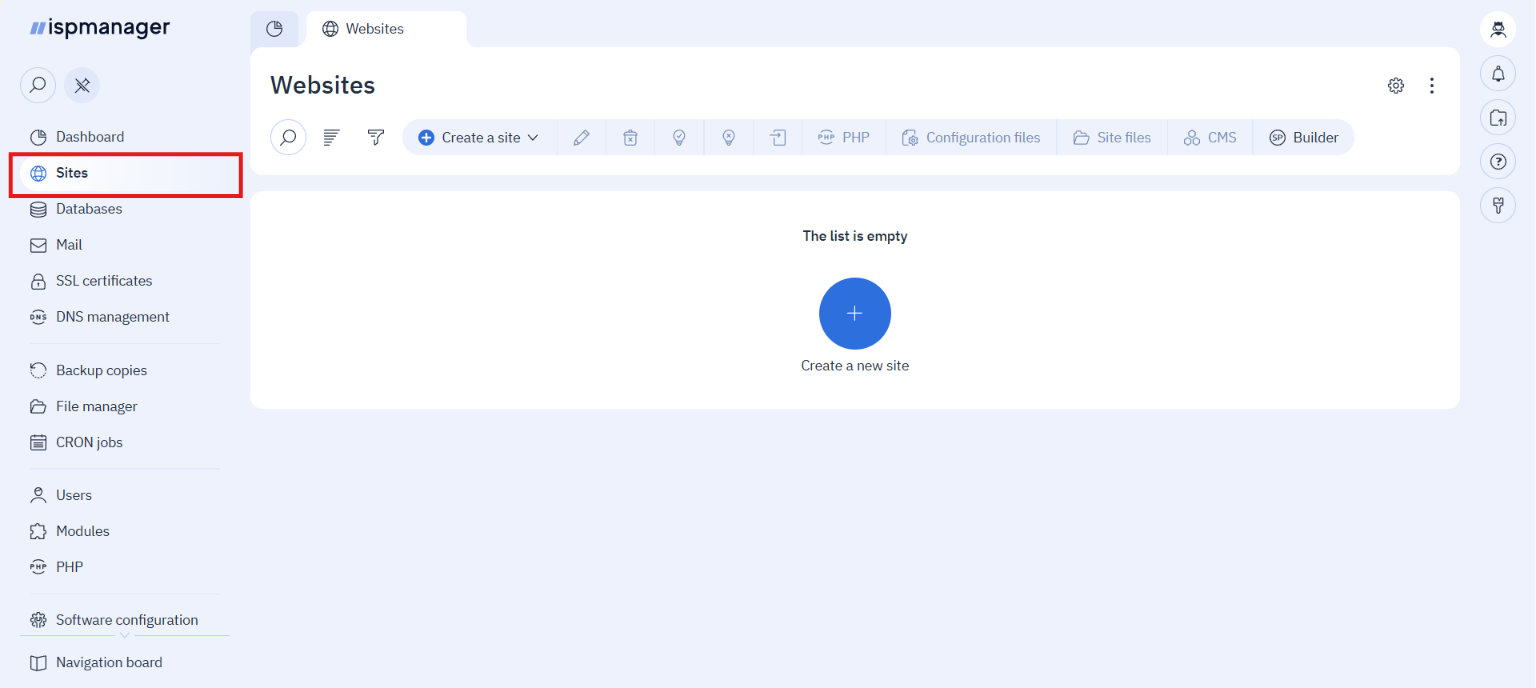
- You can link a certificate to a site so it’s immediately usable.
- You can quickly issue and switch between certificates when editing.
- You can easily track the certificate status for a specific site.
2. SSL certificates
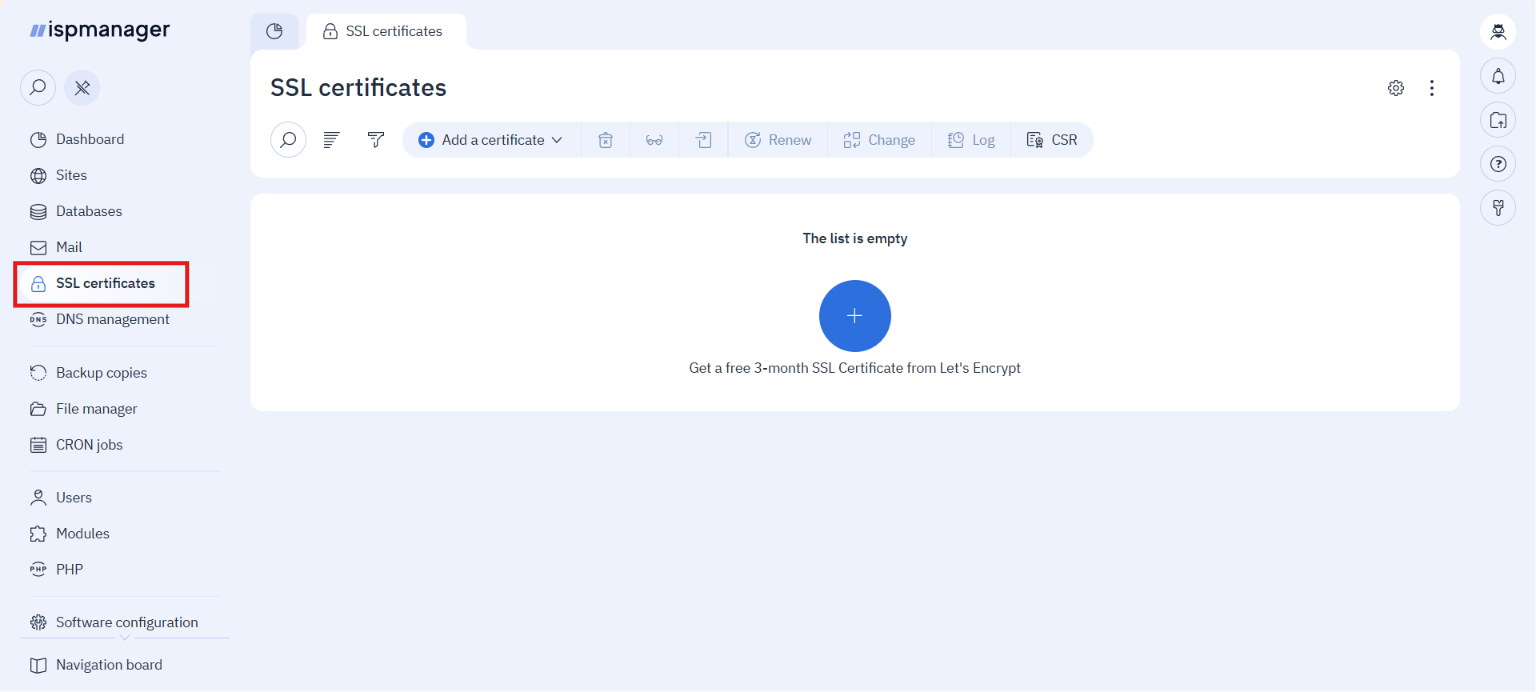 In this section, you can create, store, view, delete, renew, and replace certificates for any website.
To add a certificate separately for a website:
- Log in to ispmanager with a user-level account or higher.
- Go to the SSL Certificates section.
- Click Add a certificate on the toolbar.
- Select the appropriate option:
- Let’s Encrypt
- Self-Signed
- Existing
- Fill in the details
- Save changes
SSL certificate types
Section titled “SSL certificate types”1. Let’s Encrypt
Let’s Encrypt is a certificate authority that provides free SSL/TLS certificates.
The Let’s Encrypt module in ispmanager automates certificate requests, validations, issuance, installation, and renewal.
Let’s Encrypt Limitations
- Up to 50 certificates are available per week per domain
- Let’s Encrypt certificates are valid for 3 months
- Let’s Encrypt only issues certificates with domain ownership verification (DV certificates)
For more information about limitations, see the official Let’s Encrypt documentation.
2. Self-Signed
A self-signed certificate is a free certificate that you create and verify directly on your server. It is not backed by an external verification authority, so browsers do not consider the certificate trustworthy and display a warning. It is valid for one year, after which it is automatically renewed. It is recommended to use a self-signed certificate only on local or test servers.
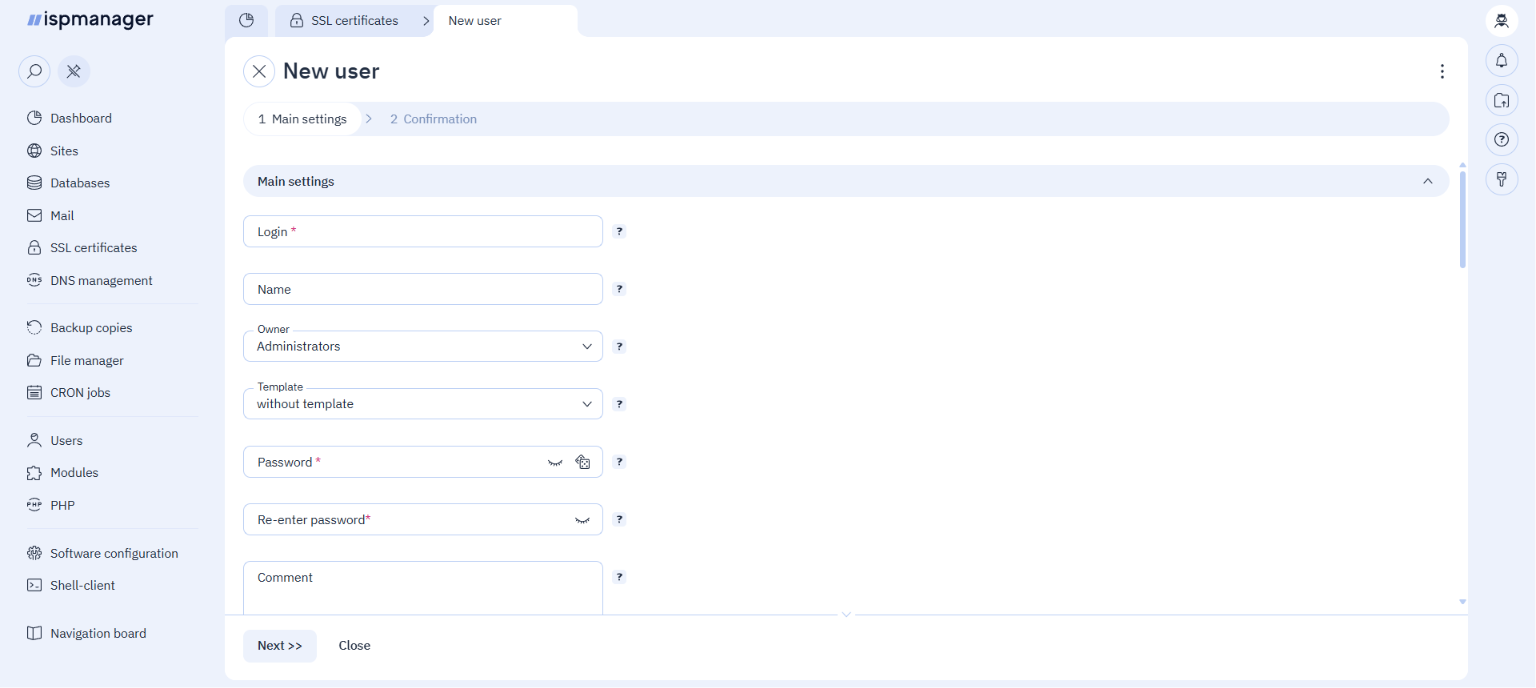
To create a certificate, fill in the required fields:
3. Existing
Existing – a certificate purchased from a certification authority. It is fully trusted by browsers. Suitable for any commercial, corporate, or government portals. The validity period depends on the certificate itself.
When adding a certificate, fill in the following values in the panel:
- Username – Select the user in ispmanager for whom the SSL certificate is being created. This option is not available for users.
- SSL Certificate – Enter the contents of the domain certificate in PEM format (.crt).
- SSL Certificate Key – Enter the certificate key in PEM format (.key).
- SSL Certificate Chain – Enter the certificate chain in PEM format (.ca-bundle). If the CA did not provide a certificate chain, generate one yourself.
If the CA provided files in a different format, change the file format manually.
Checking SSL Certificate Operation
Section titled “Checking SSL Certificate Operation”After adding an SSL certificate, we recommend checking its operation in one of the following ways:
- in the Sites section for the domain, the SSL column displays a ✅ sign
- on the site page, the URL in the address bar begins with https://
- on the site page, a lock or shield icon appears next to the URL
Technical Details
Section titled “Technical Details”SSL certificate files
By default, all SSL certificates added for a user are placed in the directory: /var/www/httpd-cert/USERNAME.
The name in the panel changes depending on the type of issued certificate:
| For Let’s Encrypt | For existing and self-signed | |
|---|---|---|
| Template | CERTIFICATE_NAME_le_NUMBER | CERTIFICATE_NAME_NUMBER |
| Example | example-crt_le1 | example-crt_1 |
SSL certificate logging
Logging is available for Let’s Encrypt of all certificate types:
- /usr/local/mgr5/var/letsencrypt.log — contains debugging information, the URL of the server accessed when issuing a certificate, and information about issuing errors.
- /usr/local/mgr5/var/ispmgr.log — contains the results of calls to the ACME client when issuing, installing, and renewing a certificate.
For self-signed and existing certificates, general information about creation and addition is recorded in the following directories:
- /usr/local/mgr5/etc/ispmgr.conf — ispmanager’s main configuration file.
- /usr/local/mgr5/var/ispmgr.log — ispmanager’s main log.