

Connecting to the Server
After creating or reinstalling a server, you can connect via SSH (Linux) or RDP (Windows).
Go to the server
Section titled “Go to the server”Open: Virtual Dedicated Servers
Click the domain name of the required server.

The server password can be found in the server properties.
Connecting to a Linux server
Section titled “Connecting to a Linux server”Option 1. Using Termius
Section titled “Option 1. Using Termius”Open Termius and enter the server IP.
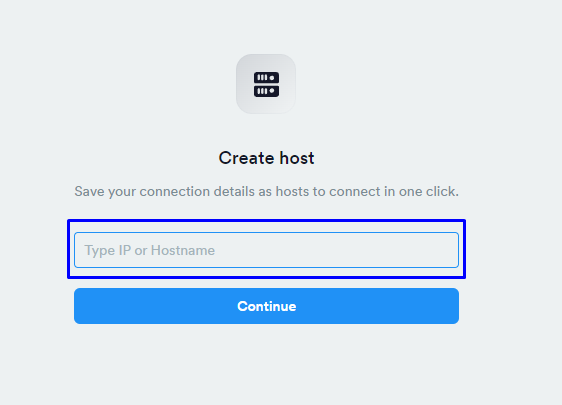
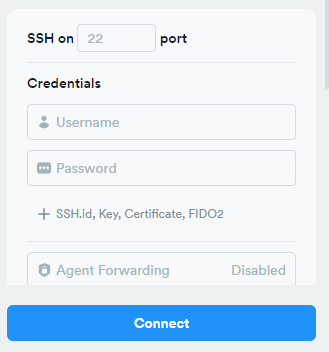
Click Continue and enter:
User: root
Password: from the control panel
Click: Connect
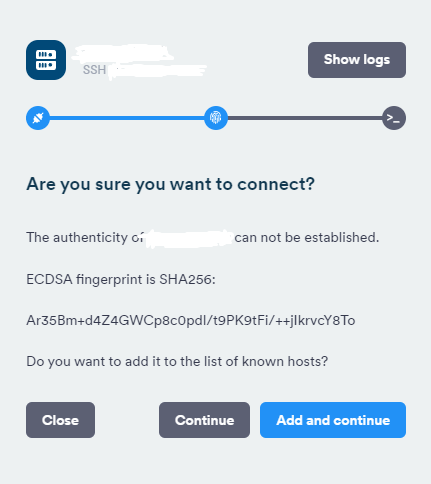
Click Continue
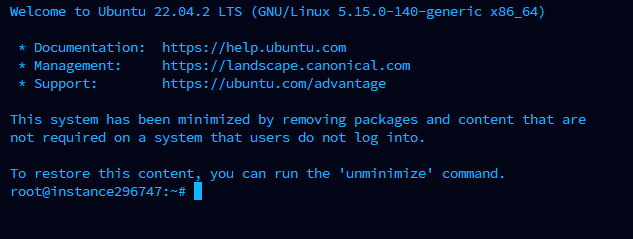
You are successfully connected!
Option 2. SSH via CMD
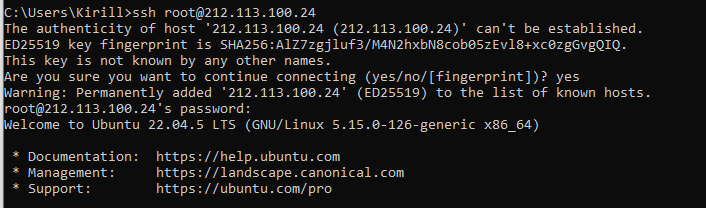
Section titled “Option 2. SSH via CMD”Run:
ssh root@IP_ADDRESSExample:
ssh root@212.113.100.24Type:
yesEnter the password from the control panel (it will not be visible).
Option 3. Using PuTTY
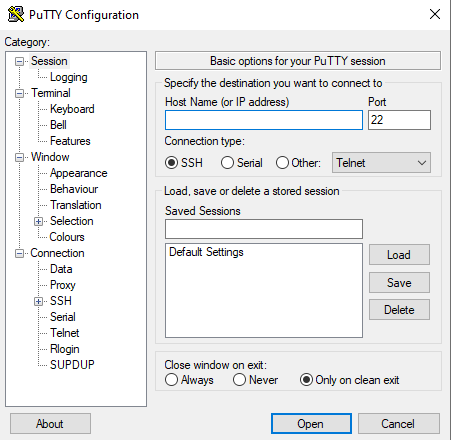
Section titled “Option 3. Using PuTTY”Enter server IP in Host Name, port 22, SSH.
Click Open
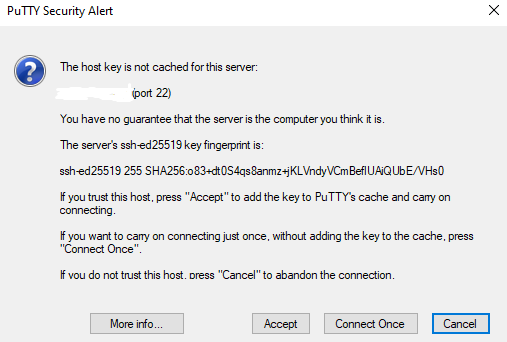
Click Accept
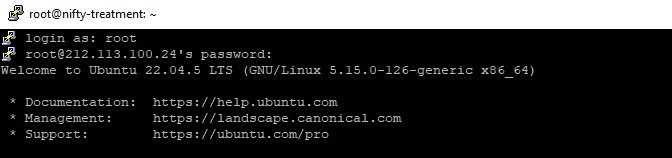
Login: root
Enter password.
Connecting to a Windows server (RDP)
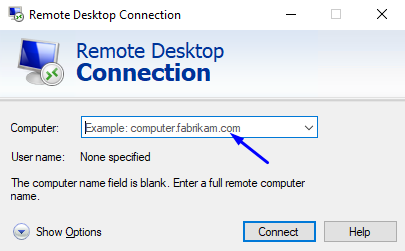
Section titled “Connecting to a Windows server (RDP)”Press Win + R and type: mstsc
Enter the server IP and click Connect
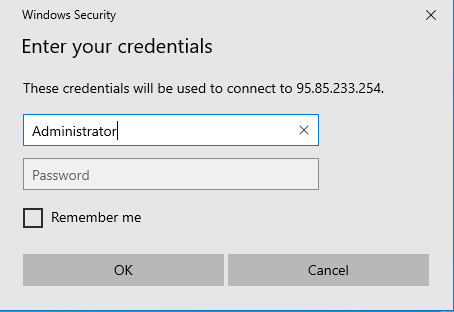
Login: Administrator
Enter password.
You are now connected.