

Tasks with Errors
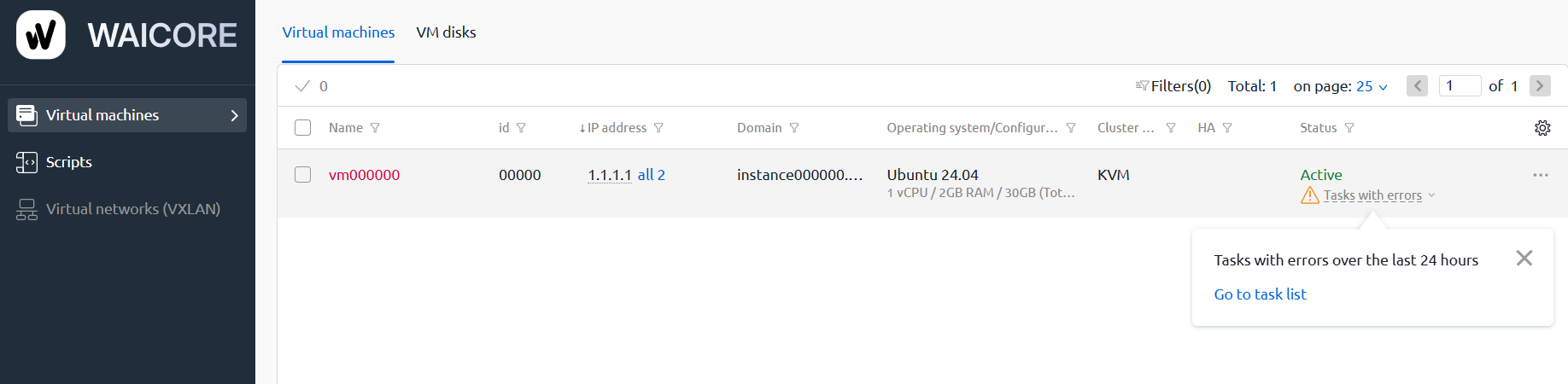
The Tasks with errors over the last 24 hours notification means that some tasks in the VM control panel failed during the last 24 hours.
If your virtual machine status is Active, this notification does not affect server operation.
Step 1. Open the notification in the control panel
Section titled “Step 1. Open the notification in the control panel”Go to the VM control panel and find the notification: Tasks with errors over the last 24 hours
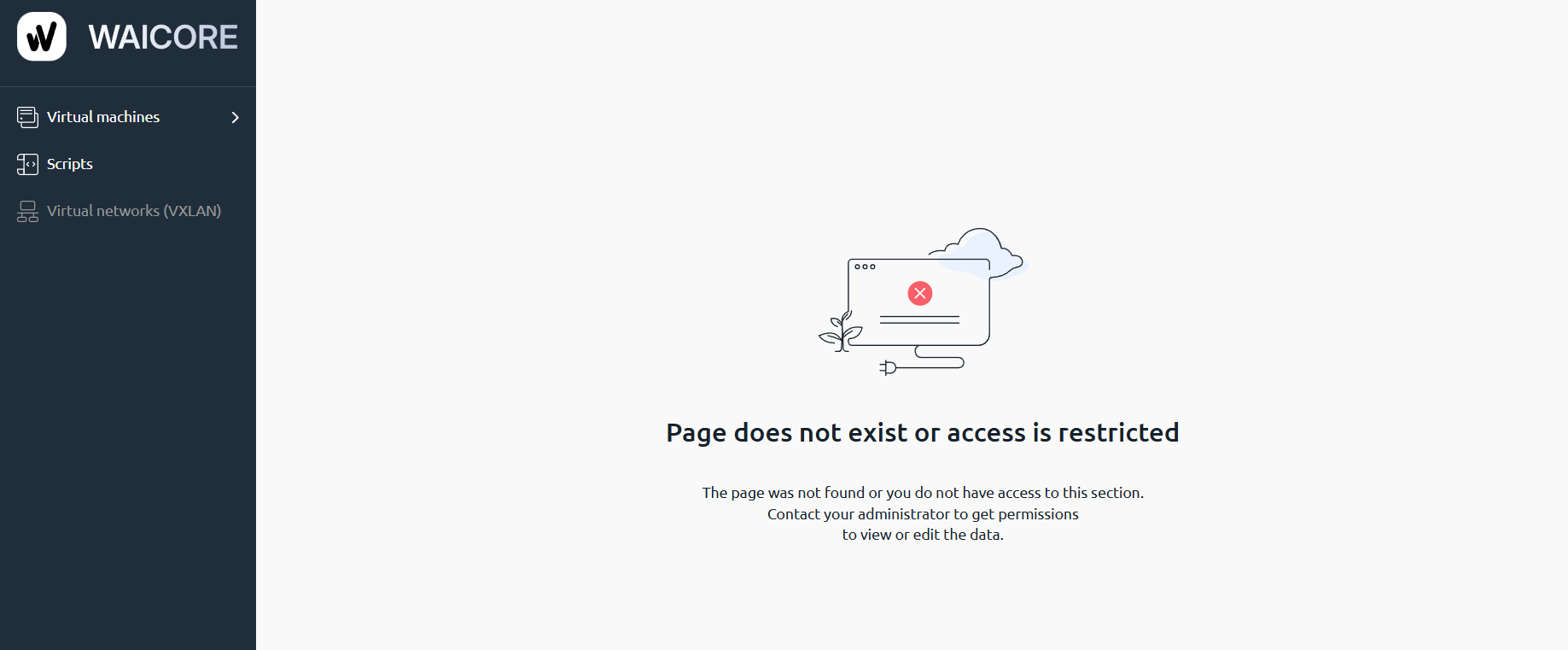
When you click Go to task list, you may see the message: Page does not exist or access is restricted
Step 2. Open the virtual machine page
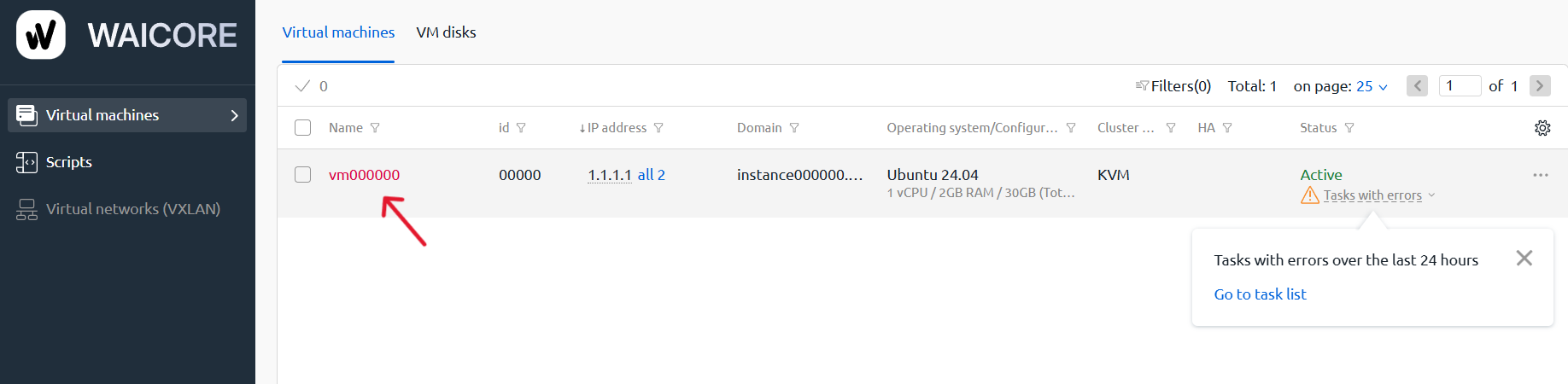
Section titled “Step 2. Open the virtual machine page”To see which task failed, click the name of your VM.
Step 3. Open Parameters
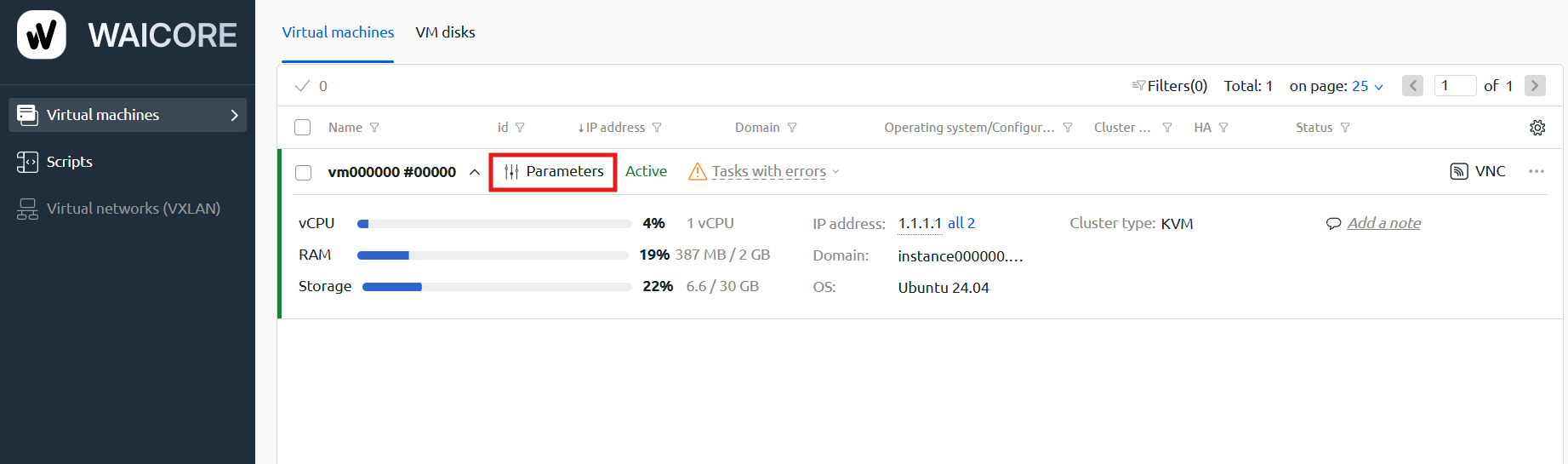
Section titled “Step 3. Open Parameters”On the virtual machine page, click: Parameters
Step 4. View the failed task
Section titled “Step 4. View the failed task”In the parameters section, you will see the task that completed with an error.
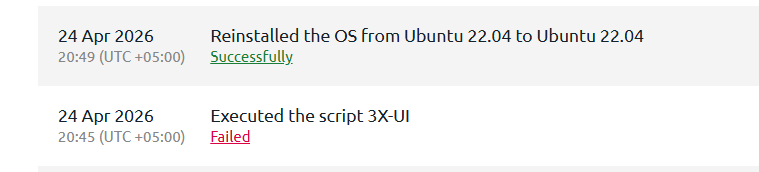
Done! You now know where to view tasks with errors.