

VM Statuses
This article explains the possible VM statuses and what actions to take if your virtual machine is not behaving as expected.
Virtual machine “Stopped” by administrator
Section titled “Virtual machine “Stopped” by administrator”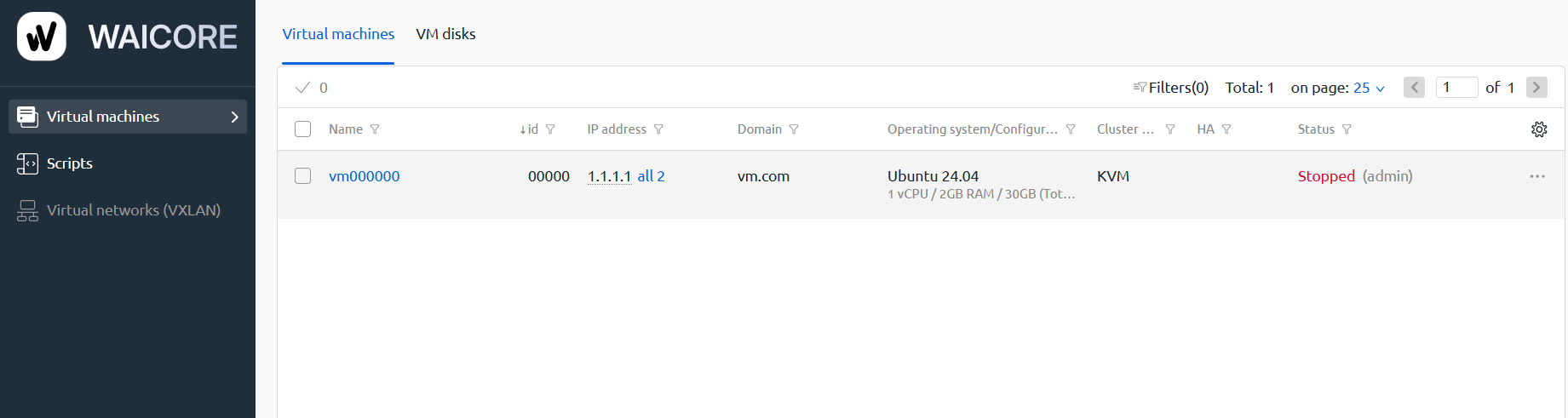
Possible reasons:
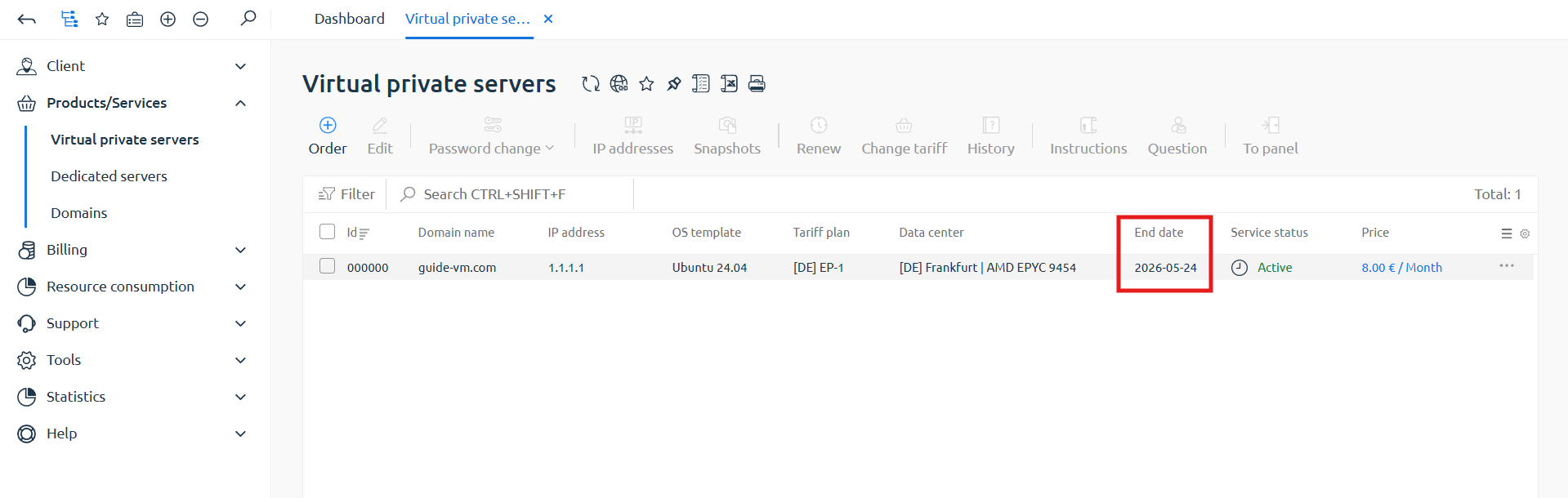
- The paid service period has expired.
You can check the server paid period in your account under Products/Services, then Virtual private servers, in the End date column.
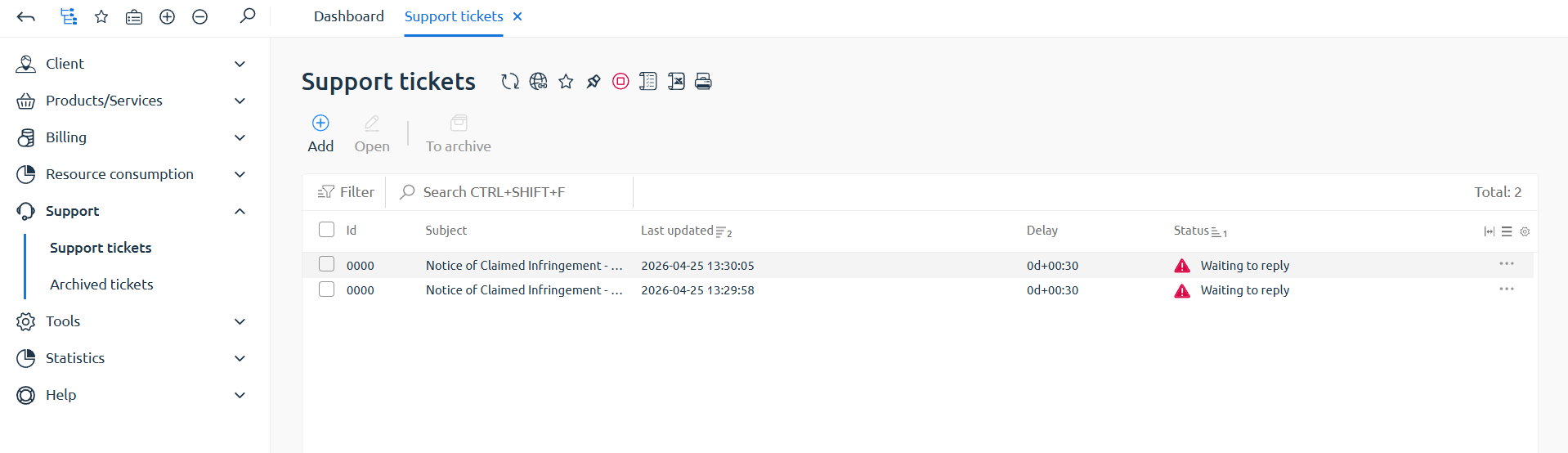
- The VM was stopped due to a violation.
If the VM was stopped due to a violation, open your account, go to Support, then Support tickets, and check whether you received a notification.
If the paid period has not expired and there were no violation notices, contact support.
Virtual machine “Paused in memory”
Section titled “Virtual machine “Paused in memory””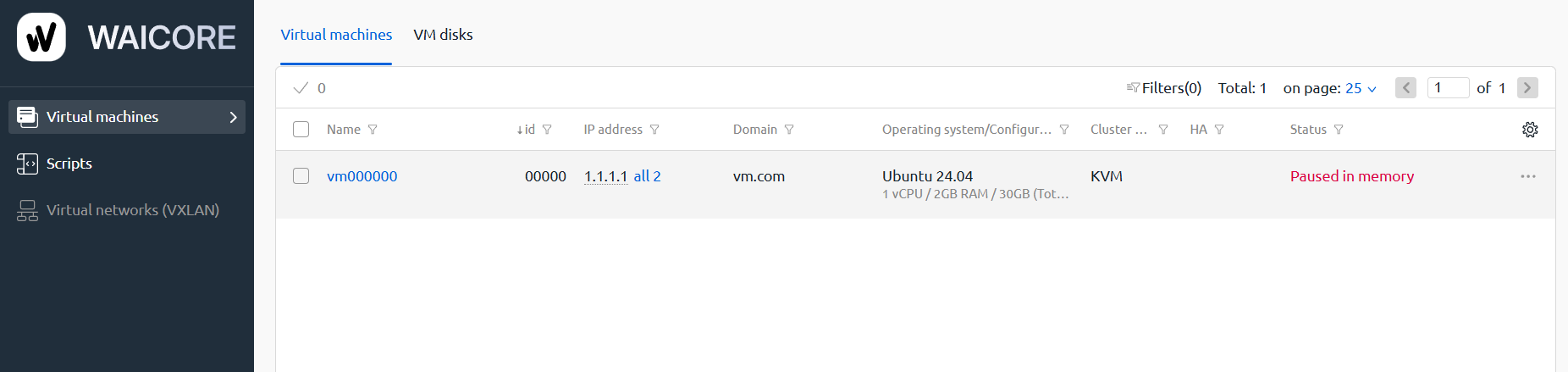
If the VM status is Paused in memory, open the three-dot menu and click Resume.
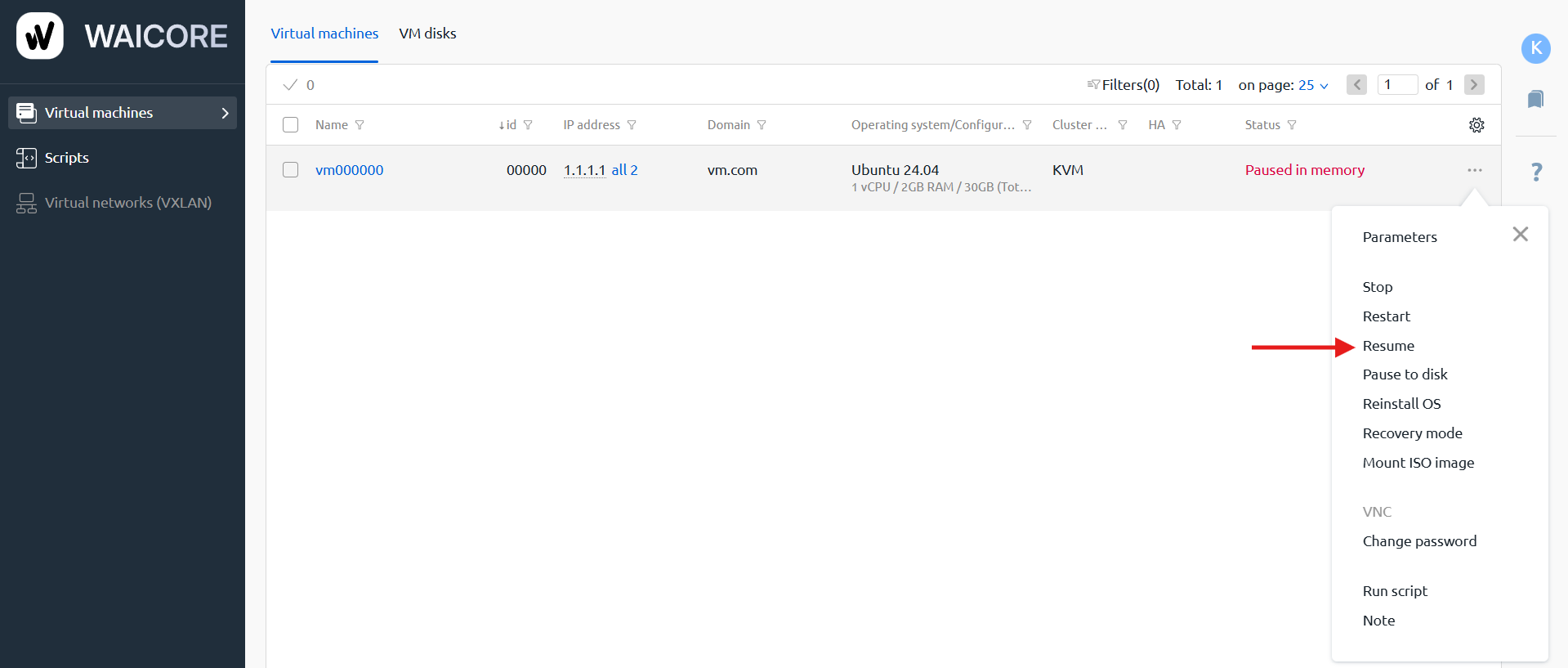
If the status does not change after that, contact support.
Virtual machine “Unavailable”
Section titled “Virtual machine “Unavailable””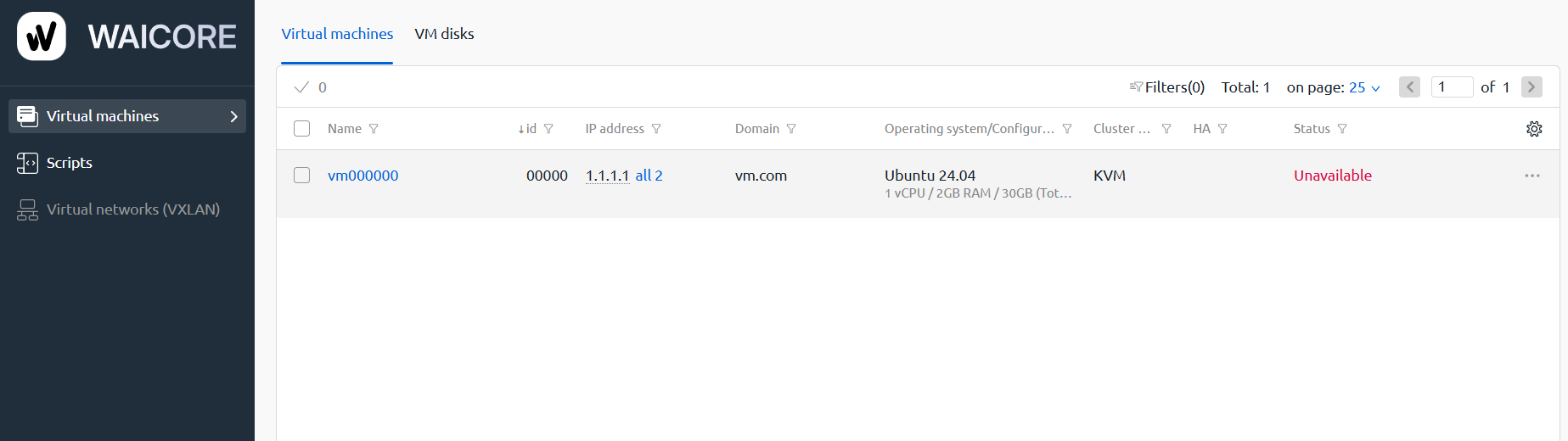
Check whether the services running on your VM are available and whether you can connect to the server via SSH.
If there is no access, contact support.
If access is available, the VM status is displayed incorrectly and will update automatically after some time.
Virtual machine “Damaged”
Section titled “Virtual machine “Damaged””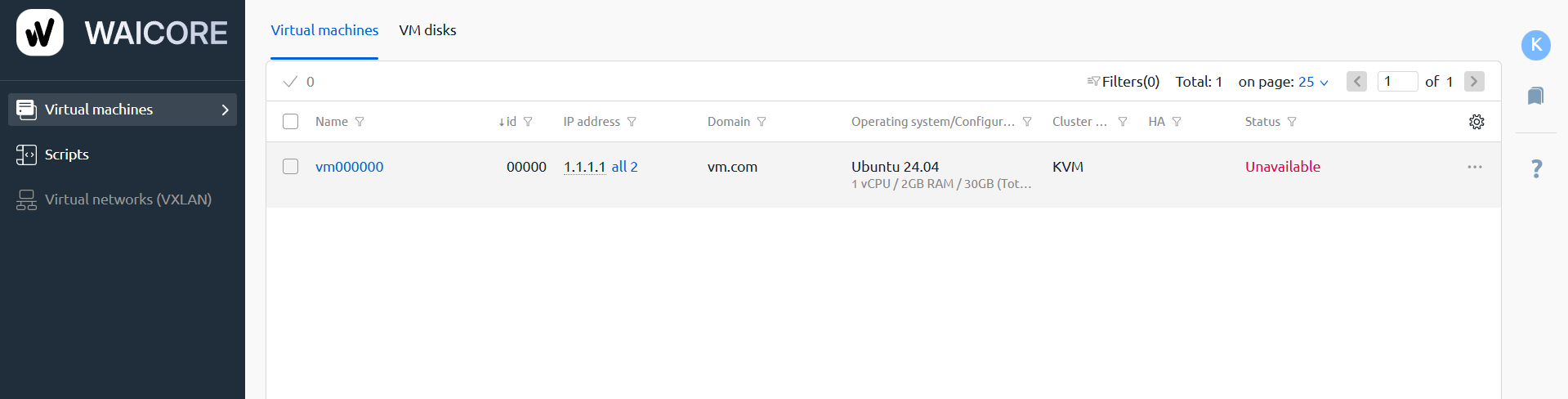
The Damaged status can mean one of the following:
- The operating system is damaged.
The OS can become damaged because of unsafe actions related to the file system or kernel. In this case, reinstall the OS.
- There is an error on the hypervisor.
In rare cases, the issue may be caused by a hypervisor error. Check server availability using Check Host and test the SSH connection.
If the VM is unavailable, contact support.
If access is available, the status is displayed incorrectly and will change automatically later.
Virtual machine “Active. In recovery mode”
Section titled “Virtual machine “Active. In recovery mode””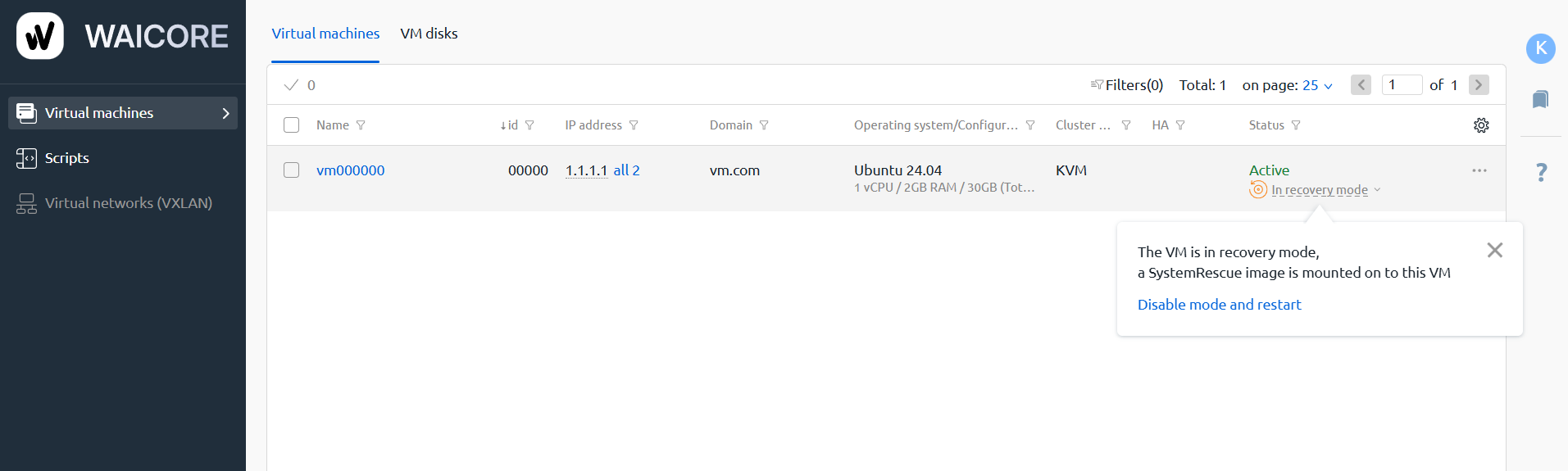
This status means that recovery mode is enabled for the VM and a SystemRescue disk is attached.
To exit this mode, click Disable mode and reboot.
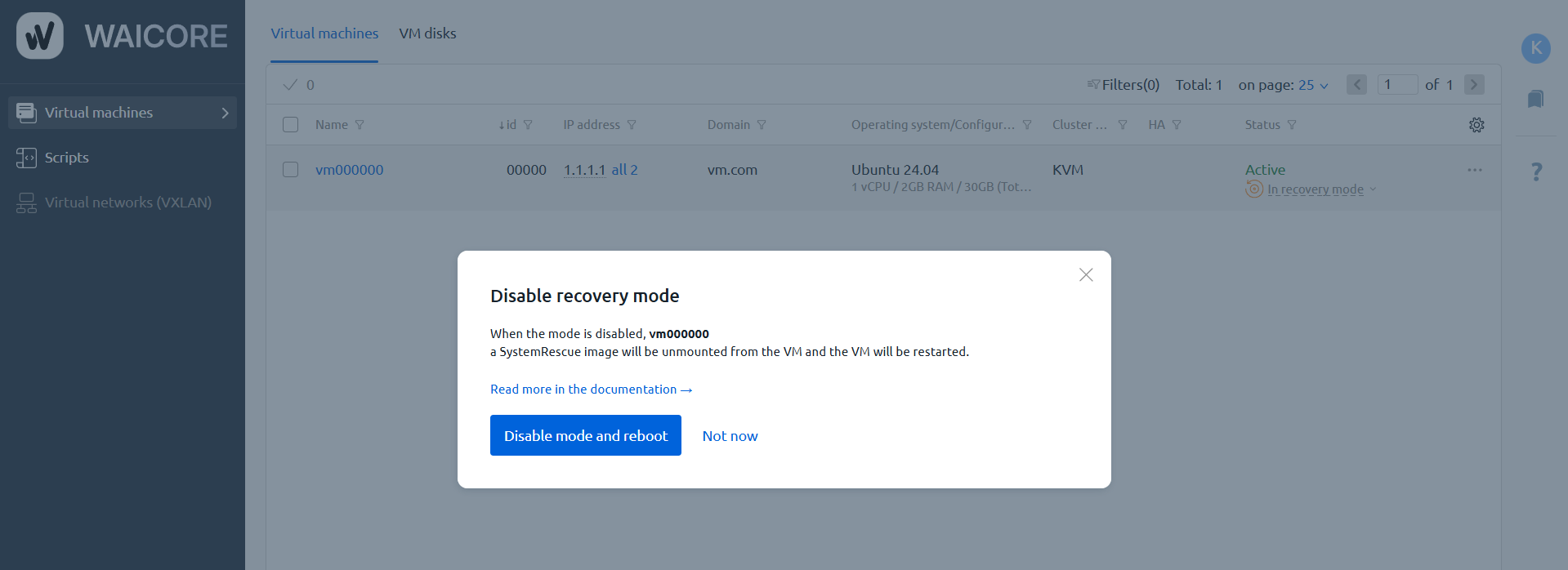
After that, your VM will become available again.
Virtual machine “Migrating”
Section titled “Virtual machine “Migrating””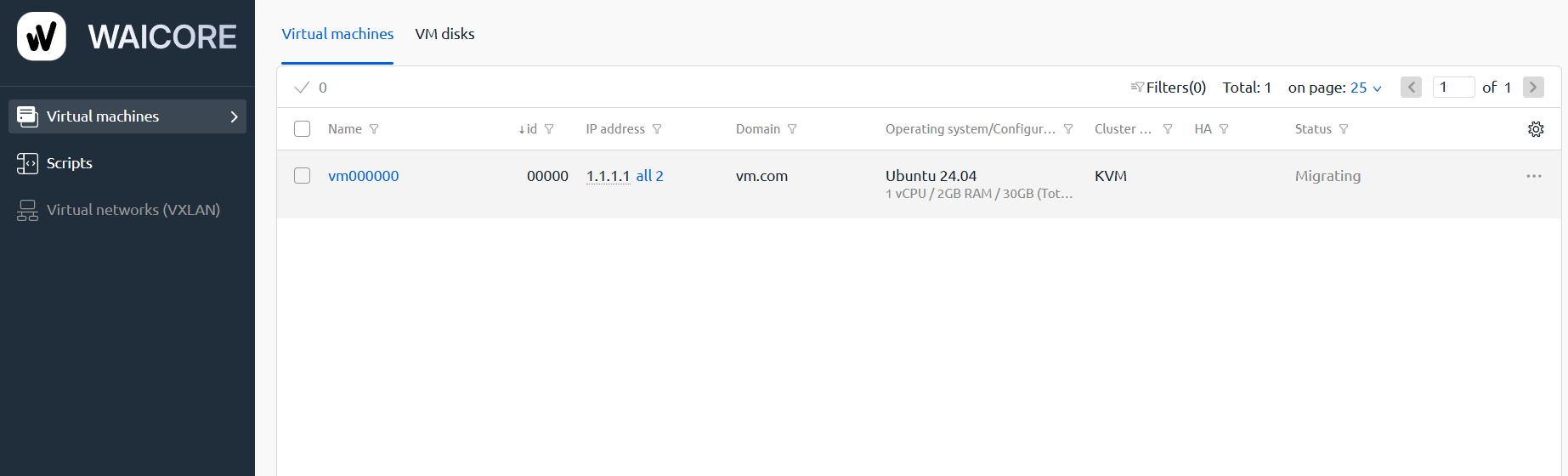
This status means that your server is currently migrating between nodes.
Wait until the migration is completed, and then the VM will become active again.
Done! You now know what the main VM statuses mean and what to do in each case.